Saturday, September 10, 2011

Recording with PulseAudio

Sometimes I find that I want to record the sound coming out of Hal's speakers. Say that my automatic recording of Prairie Home Companion goes south because an earthquake/hurricane/remnants of a tropical storm knocked out my power. It would be nice to be able to go the Prairie Home web site, click on the archive for the show, play the streaming download and record it.

I've done this kind of thing for years, mostly without the earthquakes. Occasionally there have been problems, but it's always possible to find a solution. After which I write it down so that I'll remember how to fix things.

Except sometimes my notes aren't helpful, because somebody decided it was a good idea to change things. Take a look at the above link. To be able to record sound, I'm suppose to open Gnome's Sound preferences, click on Recording, and click on Capture. Let's look at gnome-volume-control as it's shipped with Ubuntu 11.04:
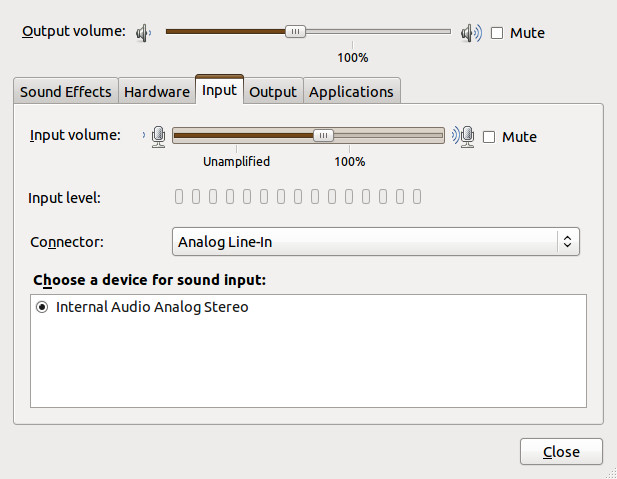
Gnome Sound Preferences

Looks nothing like what was described above, does it?

So what happened? Beats me. All I know is that someone changed things, and that the changes have something to do with PulseAudio, Ubuntu's choice for sound.

Fortunately, there is a Ubuntu Wiki article that solved things for me. Of course, the information you want is buried way down at the bottom of the article, so let me summarize it here, down at the bottom of this article. (Yes, I admit to being long-winded.)

First, you need to set up the PulseAudio volume control. For reasons known only to Mark Shuttleworth, this isn't installed by default in 11.04, and goes by the perfectly obvious name of pavucontrol. So install it first,

sudo apt-get install pavucontrol

and open it, either by typing pavucontrol from the command line or clicking "PulseAudio Volume Control" under Applications=>Sound & Video. You'll get something like this:

PulseAudio Volume Control (pavucontrol)

Not very helpful, is it? The problem is that there is no application open trying to record sound. So let's open up Gnome Sound Recorder:
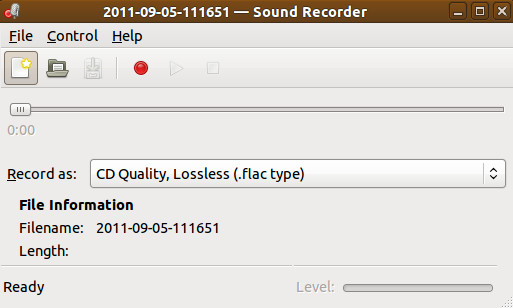
Gnome Sound Recorder (with nothing recording)

Start something playing, and press Record. PulseAudio will now look something like this:

Pulse Audio Volume Control with Gnome Sound Recorder Operating

The key to making things work is the line that says:

Sound Recorder: Record Stream from: …

You may have several options, but what you want is Monitor of Internal Audio Analog Stereo. When this is selected Gnome Sound Recorder will record what's coming out of the speakers, and will look something like this:

Gnome Sound Recorder recording

You can see it is recording as the brown (surprise!) bar at the bottom moves in time with the music's volume.

We'll leave the rest of this, e.g., recording directly to .ogg or .mp3, converting from .flac to .ogg, using Audacity instead of Sound Recorder, etc., as an exercise for the reader. Just remember, to record sound with Ubuntu 11.04, you need to use Pulse Audio Volume Control to tell whichever application you are using to record to monitor the internal audio.

Until someone decides it's time for a change.

Saturday, May 15, 2010

Fixing SoX — Again

June 15, 2011: In Ubuntu 11.04, you can add MP3 support to the Ubuntu supplied version of SoX with the libsox-fmt-mp3 package, so all of this is now unnecessary.

For as long as I remember in my Linux career I've been using Sound eXchange (SoX) to convert audio files from one format to another — in particular, converting to MP3 format so that I could play them on my audio player. As I've noted before, this isn't an easy task. Distributions are understandably reluctant to deal with the licensing and patent issues encumbering MP3 files and so let you figure it out for yourself.

The following seems to be the easiest way to do it. I got the basic process from Inverted Egg, but I'm not going to convert put everything into a .deb file, since it will just get rewritten with the next update.

Here we go:

  1. Download the SoX source tarball. It doesn't matter where you put it, we'll assume it goes to /home/yourname/Downloads.
  2. Open a terminal window and become root:
    $ sudo -i
    You'll get prompted for the password.
  3. Go to a useful directory to unload the source:
    # cd /usr/local/src
  4. Unpack the tarball. Note that the version name will occasionally change:
    # tar xvzf /home/yourname/Downloads/sox-14.3.1.tar.gz
  5. Load Ubuntu's version of SoX into the system, if it's not there already, along with the lame library and header files, which are responsible for mp3 processing:
    # apt-get install sox liblame0 liblame-dev
  6. Find all the packages that Ubuntu's SoX needed to compile, and install those you haven't installed already:
    # apt-get source sox
    That's why you needed to install Ubuntu's SoX in the first place.
  7. Now do the usual installation stuff:
    # cd sox-14.3.1
    # ./configure
    # make
    # make install
    
  8. Your new version of SoX is in /usr/local/bin/sox. Make sure it works, i.e. it converts files to mp3, and then delete Ubuntu's version of SoX:
    # apt-get purge sox

And you're done. Of course, every once in a while you're going to go back and look for updates, right?

Friday, April 27, 2007

Taking Garrison Keillor to the Gym

I'm a fan of Garrison Keillor and A Prairie Home Companion. Kansas German Lutherans aren't quite as shy as Minnesota Norwegian Lutherans, but it's a close race, and there are a lot of parallels between Lake Wobegon and Holyrood.

So I like to listen, but never get to hear an entire show.

Problem: I just can't take two hours out of every Saturday night to listen to the show. (I'm a busy (ex-)Kansas German (ex-)Lutheran.)

However, I spend 3-4 hours a week at the gym, and I have an Samsung YP-U1 MP3 player (inherited from Youngest Child after the purchase of an iFollowtheCrowdPod). So can we somehow get the show onto the MP3 player?

Yes! PHC has an archive where you can find old shows.

Problem: The archives play streaming Real Media, suitable for listening with RealPlayer or Helix Player (untested). Not a format supported by my Samsung.

Solution: Download the streaming media, convert it MP3 or OGG (the Samsung plays both).

But how? With mplayer. However, first we have to find the stream, and then capture it.

It's not as simple as all that, as the PHC site hides the file pretty well. Here's the procedure for last Saturday's (April 21) show, which just went on line:

  1. Go to the archive page, and select the month and year of the program you want to hear. Click GO
  2. Scroll down to the show you want, click on the date.
  3. On the next page, right click on the “Listen to the whole show” line, and chose the “copy link location” option.
  4. Open a terminal window, change to the directory where you want to save your files, write “wget” on the command line and then middle-click. This will produce the command:
    wget http://www.publicradio.org/tools/media/player/phc/2007/04/21_phc
    which will return a file named 21_phc.ram. (Obviously the numbers will change with the date of the show.)
  5. $ wget `21_phc.ram`
    (Note that those are backquotes.)
  6. This yields a file named 21_phc.smil. If you cat that file, you'll find a string like
    rtsp://archivemedia.publicradio.org/5559/phc/2007/04/21_phc.rm
    That's the audio stream.
  7. From here it's simple, if you read the reference article:
    mplayer -vc null -vo null -ao pcm:file=phc_070421.wav rtsp://archivemedia.publicradio.org/5559/phc/2007/04/21_phc.rm
  8. This produces a WAV file. You can produce MP3s directly with this method, but they are terribly compressed.
  9. After the two hours are up (this is streaming media, remember?), go back to the command line and compress the file. Since the Samsung reads Ogg format, I use:
    sox phc_070421.wav phc_070421.ogg
    which produces a file that I can store on the Samsung and listen to in the gym.

Of course, now that you know the trick it's trivial to write a script to do the whole thing every week, but I wanted to note how you find all of this out, in case PHC changes the format of the files involved.

Monday, January 15, 2007

Ripping Records and Tapes With Audacity

Being of a certain age, I have a substantial collection of vinyl and cassette recordings. (Fortunately, I never went in for 8-tracks. A friend of mine even had a car equipped with a 4-track tape deck. Yes, I'm old. Wanna make something of it?)

The vinyl albums and 45's have been sitting upstairs in the attic ever since the day that the cat decided that the turntable would make a nice treadmill. The cassettes have been banished there as well ever since we got our first automobile with a CD player. And now, of course, we're all in the process of compressing every bit of music ever recorded into MP3 files, if we're unlucky enough to only have brain-dead car stereos and iPod clones, or the unencumbered ogg format if we're able to find players for it.

Unfortunately, many songs I'd like to listen to on an MP3 player are upstairs in the attic. I'm not particularly inclined to go out and buy a CD reissue of an album just for one or two songs I'd like to hear, so it would be nice to be able to have a way to get those songs off of the records and into MP3 and/or OGG format. In other words, I want to rip a record, just as grip or sound juicer rip CDs onto disk.

A friend has a high-tech audio system which is set up to copy recordings to CD, and thence to a computer-readable file. Several times I thought about bringing over my whole collection (and a keg or two of beer) and asking for help, but the inertia was too great. So my records and tapes languished in the attic.

Until I read Washington Post tech writer Rob Pegoraro's newsletter, where he mentions an old article about transferring records and tapes to MP3 format.

Now I'm a self-described geek. But I didn't really think I had enough equipment to re-record albums without going outside the house. Duh. Well, except for the fact that I don't have a working turntable.

But I do have a collection of tapes, circa 1980, and an old stereo cassette tape deck, whose age can be guessed by the fact that it only has Dolby A noise reduction capability. So, assuming the tapes are in any kind of decent shape, I just need:

  • A cable to connect the cassette deck to the computer. The deck has RCA output, red and white, and the computer has a stereo plug line-in jack, so I went to RadioShack and purchased a Y-Adapter Audio Cable (part 42-2550, $6.99+tax), which has RCA plugs on one side and a modern-size stereo headphone plug on the other side. If I'd used one of our boom-boxes, I would have used a headphone-to-headphone plug. Check your connections before you head out to the 'Shack.
  • A copy of Audacity, the open source program for recording and editing sounds. It's available in the Ubuntu repository, naturally. I'd used it to edit MP3 files, but never to record. It has many capabilities I'll never even think of using. For now, we just want to record files, so we need:
    • This tutorial, which covers the basics of recording with Audacity. It's written from a Windows point of view, but the basics are the same. Especially heed the warning that by default Audacity records in Mono. It's easy to change the preference to Stereo, but you've got to do it.
    • The LAME package, which will allow Audacity to save directly to MP3. This eliminates the conversion step mentioned in the tutorial.
  • The kid3 utility, which puts in all that nice tag information, letting your MP3 player tell you which song you're hearing.

Once you've got all that, it's fairly easy. Just follow the steps in the tutorial. I prefer to save the entire session in audacity's own format, then go back, select the tracks I want, and export them to MP3. Audacity should then enter the track ID information, but that doesn't seem to work well, so I go back and fix all the tags with kid3.

The quality is surprisingly good, if you started with a decent tape. Really cheap tapes, now well over 20 years old, don't even turn in the tape deck. But higher quality tapes surprisingly retain their sound. The quality is definitely not as good as ripping from a CD, however. There's just too much background noise in the system, and the tape speed isn't exactly constant anymore. Higher-end tape decks and sound systems might work better. If I wanted that quality, though, it would be cheaper to go out and buy the CD-reissues of the albums. For listening on the computer, an MP3 player, or in the car, the quality is acceptable.

I should write a full tutorial about using Audacity, with pictures and diagrams. Maybe later.

Now I still have all of that vinyl to record. I can get hold of a turntable, but I'll have to go out to get a new cartridge so that it can play. Then we just have to keep the cat out of the room during the recording process.

Thursday, August 11, 2005

wma to mp3 Conversion
with Mplayer

OK, we've solved the problem of converting audio files to MP3 format using SoX, even in Fedora Core 4.

Unfortunately, even an MP3-enabled version of SoX doesn't convert files in WMA format to MP3.

However, MPlayer can do the conversion. You just have to know how.

Fortunately, a little bit of searching found this wma2mp3 script. It's a simple bash file. The instructions suggest that you save it as /usr/bin/wma2mp3, but actually it will work from anywhere in your path, so long as MPlayer is installed. I've got it in /home/local/bin/wma2mp3, where it is safe from OS updates. /usr/local/bin/wma2mp3 is also a good place for the file.

Finally, note that if your song filenames include spaces, you need to run this command with the file names in quotes, as it says in the notes:
wma2mp3 "*.mp3"

Now I need to figure out MPGA format, whatever that is.

Wednesday, July 06, 2005

Ripping Direct to MP3

Of course, the main purpose of previous entry was to convert ogg formatted sound files to mp3 so that I could burn them to a CD and play them in my car. Why did I need the conversion? Because I was using sound-juicer to rip files from CDs, the juice defaults to ogg for compressed files, and anyway in FC4 there is no support for MP3s in there.

I thought that maybe, just maybe, I could use the same trick on sound-juicer as we did on SoX, but that turns out to be rather difficult. So the best thing to do is follow the advice in that link and use Grip to burn CDs. As long as the lame package is present, Grip will rip CDs to MP3 format if you ask. There is a small bit of configuring required, but it works very well.

Now I just have to re-rip all those CDs.

Putting MP3s into SoX

I mentioned previously that one of the things I wanted to do with Fedora Core 4 was to find an MP3-enabled version of SoX, "the Swiss Army Knife" of sound processing programs. In FC3 I found a SoX+MP3 RPM file online. I still haven't found one for FC4. Fortunately, however, I found a hint for creating such an RPM online (search for "sox").

The procedure is rather simple, if you're willing to rebuild RPM files:

  1. Set up your account so that you can build RPM files.
  2. Find a copy of sox-*.src.rpm, where the "*" is the version number. The current version is 12.17.7-3, so you'll look for sox-12.17.7-3.src.rpm. This is available in any mirror of Fedora Core 4, I found it in
    ftp://ftp.linux.ncsu.edu/pub/fedora/linux/core/4/SRPMS/
  3. Copy sox-12.17.7-3.src.rpm to ~/rpmbuild/SRPMS.
  4. Make sure the packages lame, lame-devel, libmad, and libmad-devel are installed. If not, you'll need to install them. Assuming you followed Fedora Core Tips & Tricks to enable the freshrpms repository, you can do:
    sudo yum install libmad libmad-devel lame lame-devel
    where sudo allows selected users to run root commands. If you these packages are already installed, yum will let you know about it.
  5. Now create the RPM. From a terminal window:
    $ cd ~/rpmbuild/SRPMS
    $ sudo rpmbuild --rebuild sox*

    and wait awhile.
  6. When the program is finished,
    $ cd ~/rpmbuild/RPMS/i386
    $ ls sox*

    There should be three files with RPM extensions: sox*, sox-devel*, and sox-debuginfo*, where "*" hides all the version numbers and stuff. Since these RPMs were compiled with the lame and mad libraries, they contain an MP3 enabled version of SoX.
  7. Now for the tricky part: we have to get the non-MP3 version of SoX off the system and replace it with the MP3-enabled version. This is difficult because a) the version of SoX on your system is probably the same as the one you just complied, so the rpm database won't recognize your version as an upgrade; and b) some programs depend on SoX to run, so the dependency checker in rpm will generate an error. To get rid of the old SoX, then, we must force the uninstall:
    $ rpm -e --nodeps sox sox-devel
    assuming that you had sox-devel on your system.
  8. Now we can install the brand-new version of SoX:
    $ sudo rpm -i sox-12.17.7-3.i386.rpm sox-devel-12.17.7-3.i386.rpm
  9. Now test the program. Run
    $ sox -h
    At the bottom of the output is a list of supported file formats. If you see "mp3", then SoX works.
  10. Use SoX as before.

Note that if freshrpms ever updates SoX, you'll lose the MP3 capability and will have to repeat all of this stuff again. :-(
