Saturday, September 10, 2011

Recording with PulseAudio

Sometimes I find that I want to record the sound coming out of Hal's speakers. Say that my automatic recording of Prairie Home Companion goes south because an earthquake/hurricane/remnants of a tropical storm knocked out my power. It would be nice to be able to go the Prairie Home web site, click on the archive for the show, play the streaming download and record it.

I've done this kind of thing for years, mostly without the earthquakes. Occasionally there have been problems, but it's always possible to find a solution. After which I write it down so that I'll remember how to fix things.

Except sometimes my notes aren't helpful, because somebody decided it was a good idea to change things. Take a look at the above link. To be able to record sound, I'm suppose to open Gnome's Sound preferences, click on Recording, and click on Capture. Let's look at gnome-volume-control as it's shipped with Ubuntu 11.04:
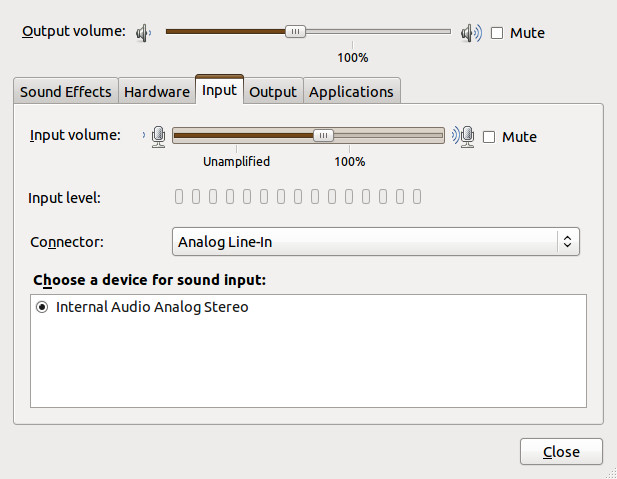
Gnome Sound Preferences

Looks nothing like what was described above, does it?

So what happened? Beats me. All I know is that someone changed things, and that the changes have something to do with PulseAudio, Ubuntu's choice for sound.

Fortunately, there is a Ubuntu Wiki article that solved things for me. Of course, the information you want is buried way down at the bottom of the article, so let me summarize it here, down at the bottom of this article. (Yes, I admit to being long-winded.)

First, you need to set up the PulseAudio volume control. For reasons known only to Mark Shuttleworth, this isn't installed by default in 11.04, and goes by the perfectly obvious name of pavucontrol. So install it first,

sudo apt-get install pavucontrol

and open it, either by typing pavucontrol from the command line or clicking "PulseAudio Volume Control" under Applications=>Sound & Video. You'll get something like this:

PulseAudio Volume Control (pavucontrol)

Not very helpful, is it? The problem is that there is no application open trying to record sound. So let's open up Gnome Sound Recorder:
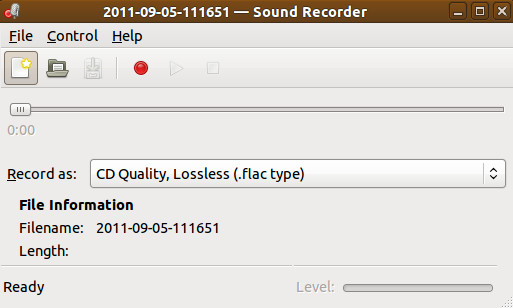
Gnome Sound Recorder (with nothing recording)

Start something playing, and press Record. PulseAudio will now look something like this:

Pulse Audio Volume Control with Gnome Sound Recorder Operating

The key to making things work is the line that says:

Sound Recorder: Record Stream from: …

You may have several options, but what you want is Monitor of Internal Audio Analog Stereo. When this is selected Gnome Sound Recorder will record what's coming out of the speakers, and will look something like this:

Gnome Sound Recorder recording

You can see it is recording as the brown (surprise!) bar at the bottom moves in time with the music's volume.

We'll leave the rest of this, e.g., recording directly to .ogg or .mp3, converting from .flac to .ogg, using Audacity instead of Sound Recorder, etc., as an exercise for the reader. Just remember, to record sound with Ubuntu 11.04, you need to use Pulse Audio Volume Control to tell whichever application you are using to record to monitor the internal audio.

Until someone decides it's time for a change.

Saturday, May 15, 2010

Fixing SoX — Again

June 15, 2011: In Ubuntu 11.04, you can add MP3 support to the Ubuntu supplied version of SoX with the libsox-fmt-mp3 package, so all of this is now unnecessary.

For as long as I remember in my Linux career I've been using Sound eXchange (SoX) to convert audio files from one format to another — in particular, converting to MP3 format so that I could play them on my audio player. As I've noted before, this isn't an easy task. Distributions are understandably reluctant to deal with the licensing and patent issues encumbering MP3 files and so let you figure it out for yourself.

The following seems to be the easiest way to do it. I got the basic process from Inverted Egg, but I'm not going to convert put everything into a .deb file, since it will just get rewritten with the next update.

Here we go:

  1. Download the SoX source tarball. It doesn't matter where you put it, we'll assume it goes to /home/yourname/Downloads.
  2. Open a terminal window and become root:
    $ sudo -i
    You'll get prompted for the password.
  3. Go to a useful directory to unload the source:
    # cd /usr/local/src
  4. Unpack the tarball. Note that the version name will occasionally change:
    # tar xvzf /home/yourname/Downloads/sox-14.3.1.tar.gz
  5. Load Ubuntu's version of SoX into the system, if it's not there already, along with the lame library and header files, which are responsible for mp3 processing:
    # apt-get install sox liblame0 liblame-dev
  6. Find all the packages that Ubuntu's SoX needed to compile, and install those you haven't installed already:
    # apt-get source sox
    That's why you needed to install Ubuntu's SoX in the first place.
  7. Now do the usual installation stuff:
    # cd sox-14.3.1
    # ./configure
    # make
    # make install
    
  8. Your new version of SoX is in /usr/local/bin/sox. Make sure it works, i.e. it converts files to mp3, and then delete Ubuntu's version of SoX:
    # apt-get purge sox

And you're done. Of course, every once in a while you're going to go back and look for updates, right?

Sunday, June 08, 2008

The Annoyances of Upgrades III: I Want My Music Programs

Yet another annoyance in the upgrade to Hardly-a-Heron: the distribution no longer includes XMMS, one of the better light-weight music players. It includes something called XMMS2, but after a few minutes of playing with it I couldn't figure out how to get it to play one song, you, know, like:

xmms2 House_of_the_Rising_Sun.mp3

something that's simple in xmms. Fortunately, there are not one, but at least two sites that take you through the process of installing the original xmms from source, including all the development packages you need to install.

And Heron still doesn't have an MP3-enabled SoX. Fortunately, once you've installed all the development packages mentioned above, the installation of sox is pretty straightforward.

I have to admit, I'm getting Grumpy, I'm getting Grumpy, all the time.

Sunday, March 23, 2008

A Programmable Audio Recorder

You might remember that I like to listen to A Prairie Home Companion at the gym. That link shows you how to take the Real Audio stream from the PHC Archive and turn it into an mp3 or ogg file.

And that works, everywhere except with Verizon FIOS, which for some reason only lets streams in RTSP be played by a real RealPlayer client. Probably a firewall issue. I've tried tracking it down, but haven't gotten up the energy to try to talk my way up the FIOS help staff to find someone who would tell me how to fix it.

But, as someone once said, “there's more than one way to do it.” For example, I could use Realplayer to play the file through the speakers, and then record the output either by invoking SoX as rec, using gnome-sound-recorder, or using Audacity (which I can't get to work in this mode). Any of these methods, of course, ties up the speakers for two hours, not very desirable.

Alternatively, one could stumble upon the fact that Minnesota Public Radio (MPR) plays as an http (port 80) continuous stream on the web, that Prairie Home Companion airs for two hours starting at 5pm Central Time (6pm Eastern) every Saturday Night, and that FIOS allows mplayer to listen to that stream. Oh, and that MPR puts on a 15-20 second advertisement when you start the download.

With that information, we construct this little script, which you should save in a directory that the /bin/sh shell can find. We'll call it mpr_record, and we thank Penguin Pete for the hint on how to put all of this in a box:

#! /bin/bash

# Get to the correct directory

cd $HOME/audio/podcasts/prairie_home_companion

# get year month date

year=`date +%y`
month=`date +%m`
day=`date +%d`

# Print out what we want to do:

echo Recording to phc_$year$month$day.flac

# Record for 122 minutes:  One minute before the official start,
# and one minute after the official end, just in case our clocks
# are off, and to account for the initial MPR ad.

# You don't have to use the flac format,
# Using .wav will end up giving you a smaller .mp3 file
# with a loss of quality that won't show up at the gym.

# You might not need the two-step process, just save directly
# to .mp3 or .ogg, but my notes say this isn't very efficient
# in terms of final file size.

# The 1> /dev/null makes sure all of the streaming information that
# mplayer continuously spits out doesn't make it into the final
# output.

# http://www.prairiehome.org/play/128.pls is linked to the MPR stream.

mplayer -endpos 2:02:00 -vc null -vo null -ao pcm:fast -ao pcm:file=phc_$year$month$day.flac http://www.prairiehome.org/play/128.pls 1> /dev/null

# Convert to mp3
# ogg produces a smaller file, but my player doesn't do ogg.

echo Converting to phc_$year$month$day.mp3

# Note that SoX must be recompiled to support MP3s, if that's
# what you want here.  Actually, that link doesn't work on Ubuntu,
# I had to recompile from source.  Someday I'll write that up.

sox phc_$year$month$day.flac phc_$year$month$day.mp3

# Of course, ffmpeg would work just as well:

# ffmpeg -i phc_$year$month$day.wav phc_$year$month$day.mp3

# Edit id3 info.  This adds both id3v1 and id3v2 data.
# My labeling scheme is designed to overcome the limits of my
# player.  You might want to label yours differently.  See
# 'man id3v2' for all the options.

echo Labeling phc_$year$month$day.mp3

id3v2 -t $year$month$day -g 100 -y 20$year -A NPR -a "Prairie Home Companion" -T 1 phc_$year$month$day.mp3


So, if you've read all the comments, you'll see that this records from MPR for two hours and two minutes. Now we just need to make sure this starts one minute before 6pm (Eastern US), every Saturday. If you've been following along this blog, you know this is a job for cron. The crontab entry we need is

59 17 * * 6 mpr_record > $HOME/audio/podcasts/prairie_home_companion/mpr.errors 2>&1

which starts the recording at 17:59 (5:59pm) local time (Eastern, here), on the sixth day of the week, running the program mpr_record and putting all of its output into an error file, just in case we need to track things down.

Of course, what we've done is turned the machine into the Internet Audio version of a programmable VCR. This can be used for any regularly scheduled broadcast the mplayer can play.

Thursday, August 11, 2005

wma to mp3 Conversion
with Mplayer

OK, we've solved the problem of converting audio files to MP3 format using SoX, even in Fedora Core 4.

Unfortunately, even an MP3-enabled version of SoX doesn't convert files in WMA format to MP3.

However, MPlayer can do the conversion. You just have to know how.

Fortunately, a little bit of searching found this wma2mp3 script. It's a simple bash file. The instructions suggest that you save it as /usr/bin/wma2mp3, but actually it will work from anywhere in your path, so long as MPlayer is installed. I've got it in /home/local/bin/wma2mp3, where it is safe from OS updates. /usr/local/bin/wma2mp3 is also a good place for the file.

Finally, note that if your song filenames include spaces, you need to run this command with the file names in quotes, as it says in the notes:
wma2mp3 "*.mp3"

Now I need to figure out MPGA format, whatever that is.

Wednesday, July 06, 2005

Ripping Direct to MP3

Of course, the main purpose of previous entry was to convert ogg formatted sound files to mp3 so that I could burn them to a CD and play them in my car. Why did I need the conversion? Because I was using sound-juicer to rip files from CDs, the juice defaults to ogg for compressed files, and anyway in FC4 there is no support for MP3s in there.

I thought that maybe, just maybe, I could use the same trick on sound-juicer as we did on SoX, but that turns out to be rather difficult. So the best thing to do is follow the advice in that link and use Grip to burn CDs. As long as the lame package is present, Grip will rip CDs to MP3 format if you ask. There is a small bit of configuring required, but it works very well.

Now I just have to re-rip all those CDs.

Putting MP3s into SoX

I mentioned previously that one of the things I wanted to do with Fedora Core 4 was to find an MP3-enabled version of SoX, "the Swiss Army Knife" of sound processing programs. In FC3 I found a SoX+MP3 RPM file online. I still haven't found one for FC4. Fortunately, however, I found a hint for creating such an RPM online (search for "sox").

The procedure is rather simple, if you're willing to rebuild RPM files:

  1. Set up your account so that you can build RPM files.
  2. Find a copy of sox-*.src.rpm, where the "*" is the version number. The current version is 12.17.7-3, so you'll look for sox-12.17.7-3.src.rpm. This is available in any mirror of Fedora Core 4, I found it in
    ftp://ftp.linux.ncsu.edu/pub/fedora/linux/core/4/SRPMS/
  3. Copy sox-12.17.7-3.src.rpm to ~/rpmbuild/SRPMS.
  4. Make sure the packages lame, lame-devel, libmad, and libmad-devel are installed. If not, you'll need to install them. Assuming you followed Fedora Core Tips & Tricks to enable the freshrpms repository, you can do:
    sudo yum install libmad libmad-devel lame lame-devel
    where sudo allows selected users to run root commands. If you these packages are already installed, yum will let you know about it.
  5. Now create the RPM. From a terminal window:
    $ cd ~/rpmbuild/SRPMS
    $ sudo rpmbuild --rebuild sox*

    and wait awhile.
  6. When the program is finished,
    $ cd ~/rpmbuild/RPMS/i386
    $ ls sox*

    There should be three files with RPM extensions: sox*, sox-devel*, and sox-debuginfo*, where "*" hides all the version numbers and stuff. Since these RPMs were compiled with the lame and mad libraries, they contain an MP3 enabled version of SoX.
  7. Now for the tricky part: we have to get the non-MP3 version of SoX off the system and replace it with the MP3-enabled version. This is difficult because a) the version of SoX on your system is probably the same as the one you just complied, so the rpm database won't recognize your version as an upgrade; and b) some programs depend on SoX to run, so the dependency checker in rpm will generate an error. To get rid of the old SoX, then, we must force the uninstall:
    $ rpm -e --nodeps sox sox-devel
    assuming that you had sox-devel on your system.
  8. Now we can install the brand-new version of SoX:
    $ sudo rpm -i sox-12.17.7-3.i386.rpm sox-devel-12.17.7-3.i386.rpm
  9. Now test the program. Run
    $ sox -h
    At the bottom of the output is a list of supported file formats. If you see "mp3", then SoX works.
  10. Use SoX as before.

Note that if freshrpms ever updates SoX, you'll lose the MP3 capability and will have to repeat all of this stuff again. :-(

Sunday, October 31, 2004

Mplayer Update

Rather than watch the Redskins season go absolutely, positively down the tubes, or contemplate the election, let's discuss mplayer, one of Linux's two video players (the other being xine) that has a chance of playing files made in Windows (a trademark of Microsoft).

This was prompted by a Slashdot posting of a video of the recent lunar eclipse. Unfortunately, the video was made with Adobe's Premiere Pro and saved in a .wav file with some codec that I didn't have, and wouldn't play in mplayer or xine. The Slashdot solution was to download the newest codec tarball and recompile. This seemed like a lot of work. So I went to the mplayer site and found the RPMs for Fedora Core 1. Looking around the site, I finally determined that I needed:

mplayer-1.0pre5-2.i386.rpm
mplayer-common-1.0pre5-2.i386.rpm
mplayer-font-iso1-1.1-1.noarch.rpm
mplayer-codecs-essential-20040704-1.i386.rpm
mplayer-gui-1.0pre5-2.i386.rpm
mplayer-skin-default-1.4-1.noarch.rpm

You'll need to search around for all of these. Look under both "essential" and "optional" downloads.

Problem: So of these RPMs conflict with my current mplayer setup. Which I got from the Fedora Core 1 distribution, which isn't supported anymore, meaning that I might not be able to get it back, as it's not included in the Fedora Core Legacy RPMs. At least, I never saw it. But, I went ahead, crossed my fingures, and deleted the old mplayer RPMs, then installed all of the others in one go:

$ rpm -ivh mplayer*.rpm

And it works. I can view the video.

Unfortunately, it's not very good.

Thursday, August 12, 2004

Unfortunately, It Can't Say "Jaffa! Kree!" With Any Conviction

but it does get your computer to talk:

ATT Interactive Multi-Lingual Demo

Tuesday, August 03, 2004

RealPlayer 10 Setup

Installed the release version of RealPlayer 10 for Linux. This supersedes the beta version I talked about earlier.

When you download, don't let the name RealPlayer10GOLD scare you, they aren't charging for this player, unlike previous Gold versions.

Had some difficulty getting Plugger to let go of the RealPlayer plugins for Firefox. To do that,

  1. If you set up the symbolic links to the plugins as in the beta version post then they still point to the right location. If you used hard links, then you'll have to delete them and relink.
  2. Edit the file ~/.mozilla/plugins/pluggerrc, removing or commenting out all calls to realplayer (whether all is a good idea remains to be seen).
  3. Delete the file ~/.mozilla/pluginreg.dat. Mozilla/Firefox reads this to find plugins. It only consults the plugins themselves if this file is gone
  4. Restart Firefox

So far everything works. I can even watch CBS News videos, which I couldn't do before, probably because I didn't have the plugins set up correctly.

Sunday, July 04, 2004

RealPlayer

Awhile ago, I tried the Helix Player, an open source version of RealPlayer. I didn't have much success with it.

But now, RealPlayer 10 is out for Linux. It's not free, but it's not obnoxious like some versions of yore. So I decided to try it out. There's an RPM and everything, though for some reason the code goes in the /usr/local tree instead of /usr.

So far it works. I did have to tweak the plugins to get them to run in Firefox, though. The Mozilla Realplayer Plugins are in /usr/local/RealPlayer/mozilla. With my non-standard setup, the plugins didn't get into the Firefox plugin directory, so I did
$ cd /usr/local/firefox/plugins
$ ln -s /usr/local/RealPlayer/mozilla/nphelix.so .
$ ln -s /usr/local/RealPlayer/mozilla/nphelix.xpt .
This works pretty well. The CBS News site lets me play some content within the browser window. However, for some content it insists on launching Xine, which I use to play .wmv files, and then not playing the file. Even though I've set my preferences to RealPlayer.
