Monday, January 19, 2009

Technical Difficulties

Those of you who occasionally look at my web space www.rcjhawk.us, will find that my domain has been replaced by another. That's because my provider, awardspace.com, neglected to tell me that the domain registration expired until a full two weeks after it actually expired. I've re-registered, hopefully the everything will be back to normal in a day or two.

Actually, it took about an hour. Everything is back in place.

Tuesday, January 06, 2009

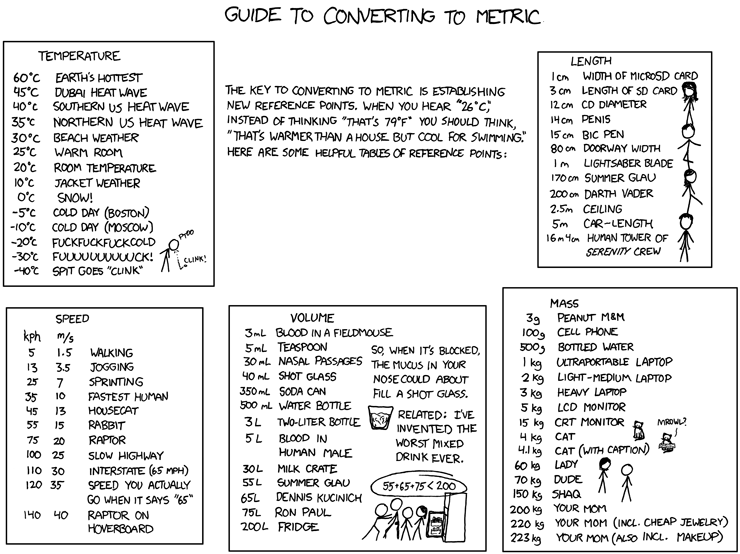
How to Explain the Metric System to Americans

Because it's time for a change:

xkcd: 5 January 2009

(If part of the chart is hidden, or it's too small to see, click on it to get the full picture.)

Saturday, January 03, 2009

The Twenty-First Century is When Everything Changes

OK, I'm about three years late finding this, but it's still cool:

Phobos and Deimos seen from the surface of Mars

Wednesday, December 31, 2008

Upgrading to Ubuntu Intrepid

I'm finally getting around to updating my Linux machines to Ubuntu 8.10 (Intrepid Ibex). It's not a complicated process, but I wanted to catalog all the steps, for future reference:

  1. Back up anything on your machine you can't bear to lose. Don't assume that the upgrade will go painlessly, and none of your data will be lost. There is a technical name for people who believe that they don't need to back up data before updates: Fool.
  2. OTOH, you don't need to back up your /usr, /bin, /etc, /lib etc. directories, unless you've tweaked them, because even if you hose your installation, when you install a new distribution you'll get all of that back.
  3. Run sudo apt-get update and sudo apt-get upgrade from the command line to be sure everything is up to date on your current system.
  4. Since we're upgrading from Ubuntu 8.04, which has long term support, we need to explicitly tell the system that we want an update to a non-LTS release. Go to System ⇒ Administration ⇒ Software Sources, click on Update, and change the Release upgrade selection from Long term support releases only to Normal Releases.
  5. Kill any processes you've got running in your own space: browser, mail client, emacs, etc.
  6. Go to System ⇒ Administration ⇒ Update Manager. At the top of the window will be a button saying Upgrade. Ignore the Partial update warning messages.
  7. Hit it.
  8. The upgrade process takes some time. You need to check back once in a while, because there will be the occasional question to answer.
  9. It took about 45 minutes via FIOS to download all of the update software.
  10. Took about 5 hours to do all the updates on Hal. Probably way too much software installed. Next update I think I'll start from the CD and only install the software I really want.
  11. It took another 30 minutes or so to remove old packages.
  12. Glad I took the day off.
  13. At the end, you'll probably get a message to the effect that some of your software couldn't be updated. This is third party Unfree software, such as Acrobat, RealPlayer, GoogleEarth, etc. If you're running a truly Free system you probably won't see this message. If you're running Free, though, you're probably running Debian, so you're not reading this. To update your Unfree software, go back to Software Sources, click Third-Party Software and change any lines that say hardy to intrepid. Click the repositories you want to enable (medibuntu for sure, canonical possibly).
  14. Go back to the Update Manager and update your software. There will be updates, probably even if you aren't using the third-party software repositories. When that's done, before quiting, click Check, then update again if necessary. Repeat until your system is truly up-to-date.
  15. Rebuild any software that depends on obsolete libraries. For example, SoX, which I like to build from source to do proper conversions to MP3 format as well as away from MP3 format. This is a good time to get the latest version of these codes.

Sunday, December 28, 2008

A Year of FIOS

Well, in the language of a current TV show, we've been using FIOS for One year, nine days, and forty-six minutes, so it's time for our first annual performance review:

  • It works. Internet, Television, Telephone, all work.

  • The system has no trouble with Linux machines. The tech who installed the router had to use a Windows machine to initialize it, but I think that was more of a tech ability issue than an absolute requirement. I can certainly log into the router via the web interface from either of the Linux boxes, as well as the Macs and the windows machines. I think I've noted that the router won't let you listen to streaming RealPlayer output with a program other than RealPlayer, but that's a minor issue and I could probably call tech support to see how to set the router firewall permissions appropriately. Everything else works fine.
  • We haven't used the telephone that much, frankly. My wife prefers the sound on the copper-wire line we kept, and since I'm not here that much this year we don't often use the FIOS line. I don't notice any difference in sound quality, but you should know that I just found out that a Sonic Screwdriver makes a sound that I can't hear, but everyone else can.
  • TV reception is excellent. There haven't been a lot of the pixellation issues that we had with Comcast digital. The only thing better about Comcast was that they included Starz, Encore, etc., in the standard package. FIOS doesn't, but if you buy the Showtime package, you get all of that as well. (HBO is a separate package, alas.)
  • When FIOS switched to an all digital TV signal last summer, they sent me a free convert box that allows me to access all of the TV channels on my second TV. It doesn't have any fancy features, but it accesses all the FIOS channels.
  • All in all, the quality of service is slightly ahead of Comcast's. However, that has a lot to do with the quality of the connection between the street and the house, and Comcast was using an old cable. If we ever switch back to Comcast, they will hopefully install a newer, high-speed, connection.

So all in all, a positive experience. Knowing what I know now, would I sign up with FIOS again? Yes, absolutely. Next December our two-year commitment to FIOS ends. Will we keep it? It depends on the package Comcast has to offer.

30 Dec 2008: Things I forgot to add the first time:

  • Verizon gives you a measly 10 MB of personal web space, last I looked. I think Comcast gave you about 250 MB. So I had to move my personal web pages to a freebie website provider. Well, it was free except that I had to register my domain with them. Since that only costs $7/year, it's not a problem. But if you have a significant amount of junk content in your current ISP's personal web space, it won't fit into FIOS.
  • The DVR box that we rent from FIOS comes with some nifty widgets, allowing you to view weather, traffic, news, and sports results, along with community information, of which we've had none.

31 Dec 2008: Just one more thing: The FIOS tech can initialize your system without Windows. Just look at the last paragraph of this link. Wish I had known that last year. Oh, well, that was a long time ago, in (almost) another administration, and anyway, that Windows installation is dead.

Friday, December 26, 2008

Breaking Up MP3 Files

I have a small MP3 player that I take to the gym to keep me occupied while I'm working out. It's a hand little thing — except that it's little which means that the buttons are both few, and small.

In particular, the fast forward button is also the next track button — you press quickly to change tracks, and you hold it down to fast forward.

Which brings up a problem when you want to fast forward through a selection: if you are fast-forwarding and let up on the button ever so slightly, it skips to the next track. Which is a really bad thing when your tracks are two hour radio shows.

Yeah, it's bad design. But it's a lot cheaper than an iPod. So let's make do with the player we have, and note that CD players have this same problem with audio books. The audio book publishers have solved this by breaking up the selection, say a chapter, into smaller tracks, which take 3-4 minutes to read. If you need to scroll through a bunch of tracks, you can easily do so at 15-20 key presses per hour of audio.

There's a utility for doing this with MP3 tracks, called mp3splt, available via apt-get in Ubuntu, and presumably available for most Linux distributions, as well as Windows machines and Macs. It will break up an MP3 (or OGG) file into user specified segments. It's pretty flexible, in that you can specify the length of each segment, or break when the silence is longer than a predefined number of seconds, or into fixed-length segments, or, what I like best, into nearly fixed-length segments which are adjusted in length so that they begin and end during silent stretches.

It's a command line utility, and it works really well: except that it destroys about 90% of the ID3 tags, including all the ID3 version 2 information. I don't like that, as my MP3 player can be programmed to sort by title, album name, or performing artist, and I use this to determine the order I'll listen to programs such as Prairie Home Companion and Car Talk.

The canonical command line utility to label MP3 files is id3v2. I used this to write a rather small Perl script, splitmp3, which calls mp3splt to split an MP3 file into chunks which are each about five minutes long, preserving the ID3 labels of the original file, and including the appropriate track number. You can download the file from this link:
splitmp3

Let me know how it works for you, and feel free to add improvements.

Tuesday, December 23, 2008

Rationalizing Your Email

A. Friend recently discovered, yet again, that the Evolution mail client doesn't like it when your Inbox grows bigger than 2 GB. I've never had this problem myself, but a family member once found that Netscape had a similar limit. So let's come up with a few rules about how to keep your email rational. Some of these are written for Thunderbird, my client of choice, but most other mailers have similar options. In no particular order:

  • Don't store your messages at all: Gmail currently has a 7.1GB limit on all messages. And if you use their IMAP function, you can view all your messages in your favorite email client (even Outlook). You can even put the mail in folders, because IMAP interprets Gmail's labels as a client's folders. Of course, you can only read your email when you are connected to the net, but you can read it from anywhere that has a modern Internet browser.

    Note: Don't use Gmail for anything you'd like to be able to delete before the subpoena arrives.
  • Use Filters: I use Thunderbird's filter mechanism to sort email before I read it. All email from news sources goes into a News folder, email from family or friends goes to a folder named for that person, emails from companies I ordered from exactly once goes to /dev/null, etc. Thunderbird then highlights the folder name and tells me how many emails I have unread in that folder (except /dev/null, for some reason), so I never miss anything.

    A.F. wants to post-filter his email: after it's read, put it in an appropriate folder. There's an option for that in the Thunderbird filtering system, as well.
  • Delete stuff: Each one of us has a friend that sends us an attached video, sound bite, or photo album each and every day. Look at them and delete. If something is so funny/moving/outrageous/sexy that just have to keep it, use the Save As feature to save the attachment in its native format, outside of your mailbox. Why? Well, in your mailbox the attachment is stored as 128 bits to the byte ASCII. In native format it will be stored using 256 bits to the byte. Do the math. You can also gzip the saved attachment much more easily than you can a single email in a folder. (Though emacs's RMAIL mode would read gzipped mail easily. Text only, unfortunately.)
  • If you think you simply must keep it in email: Ask yourself two questions: 1) Would I want to get this in an email next year?, and 2) Have I already sent this to 20+ people? If the answer to 1) is No, delete it now. If the answer to 2) is Yes, delete it — one of those 20 will forward it back to you within the week.
  • Compact your folders: Thunderbird, at least, doesn't actually delete an email message when you hit delete. It merely marks the email as deleted, and keeps it in your Inbox. That's handy if you accidentally delete something, but fatal to keeping the size of your Inbox down. Every once in a while use the Compact Folder option.
  • Periodically Reorganize: My work email box keeps getting larger and larger every day, since I get a lot of emails that resist proper filtering. So at the end of every year, I move all of my Inbox into a new folder, this year's will be called 2008 Mail. Do a similar thing for your Sent Mail folder. If you routinely send/receive more than 2 GB of email in a year, and can't bear to part with any of it, the problem's not in your mail client.

Those are my suggestions. Add yours below:

Sunday, December 21, 2008

An Anonymous Duke Student's Comment on the Election

An Anonymous Duke Students Comment on the Election

This appeared sometime in November, it was still there on Friday.

Saturday, December 13, 2008

Cleaning Out Cobwebs

I recently purchased an SVA 19" Widescreen TFT-LCD Monitor. Maximum resolution 1440x900, thin panel, internal speakers (but no manual volume control, yech), user's manual in something resembling English, and it was on sale for $99.95 at Staples. Works fine. Monitors are a commodity these days, anyway.

But that's now why I called you here today. The problem was that Hal, here, couldn't display the 1440x900 resolution of the monitor. Even though Hal's Formerly Evil Twin, running on an even bigger monitor down in Raleigh, had no trouble. All Hal could do was 1024x768, which tends to stretch out on a widescreen monitor.

It didn't take long to find the problem. Here's the relevant section of Hal's /etc/X11/xorg.conf file:

Section "Screen"
 Identifier "Default Screen"
 Device  "Intel Corporation 82845G/GL[Brookdale-G]/GE Chipset Integrated Graphics Device"
 Monitor  "ENVISION"
 DefaultDepth 16
 SubSection "Display"
  Depth  1
  Modes  "1024x768" "800x600" "640x480"
 EndSubSection
 SubSection "Display"
  Depth  4
  Modes  "1024x768" "800x600" "640x480"
 EndSubSection
 SubSection "Display"
  Depth  8
  Modes  "1024x768" "800x600" "640x480"
 EndSubSection
 SubSection "Display"
  Depth  15
  Modes  "1024x768" "800x600" "640x480"
 EndSubSection
 SubSection "Display"
  Depth  16
  Modes  "1024x768" "800x600" "640x480"
 EndSubSection
 SubSection "Display"
  Depth  24
  Modes  "1024x768" "800x600" "640x480"
 EndSubSection
EndSection

No resolution is above 1024x768. And ENVISION means that this was set up for a monitor I got rid of a year or so ago. In fact, this xorg.conf file might well go back to the days when I was running Fedora. so this might, just might, need a little modification.

To fix this in the olden days, say 2004, you'd track down all of the parameters for the current monitor, edit the file with the appropriate information, and hope all was well. Later there were scripts that did some of that, if the monitor was well known.

Now you just run

sudo dpkg-reconfigure -phigh xserver-xorg

This generates a default xorg.conf file, with the relevant section

Section "Screen"
        Identifier      "Default Screen"
        Monitor         "Configured Monitor"
        Device          "Configured Video Device"
EndSection

xorg itself then configures the monitor, device, etc., if you Ubuntu has all the drivers. This won't work for everything, and if you have a video card with proprietary drivers you're going to have to load them up, but it's a heck of a lot easier than back in the day.

Sunday, November 30, 2008

Chasing a File's Tail (In BASH)

My very first Unix experience involved the C shell (/bin/csh in your program), and I've always been partial to it, particularly for the ease of using aliases and tabbed file name completion — both available in other shells, of course, but I find this all easier in csh, or its modern descendant, tcsh.

However, when writing shell scripts, I tend to use Bash, mainly because our old AIX machines used the Korn shell (ksh), and Bash is the closest shell to Korn which is readily available on all systems. Besides which, csh programming is frequently considered harmful.

However, one thing that came much more easily to me in csh than in bash (or sh, or dash, or ksh), was the manipulation of file names. Thus, if I have a file named

/home/jhawk/chalmers/pot/dont.smoke

stored in a variable $foibles and just want the file name, not the directory, I write $foibles:t and get dont.smoke as the result. Of course you can do this in Bash as well, but I never remember how to do it. (Actually, I never remember in csh, either, but running foreach on a set of files and trying out $file:a, $file:b, ... , eventually gets me where I want to go.)

So here, as part of the original Linux Notebook function of this blog, is a table for file manipulation in Bash and csh. I've borrowed it from the Bash FAQ, question D3:

Assume

a=/a/b/c/d and b=b.xxx, that is:

$ echo $a $b /a/b/c/d b.xxx

Then

Operation csh bash result
File Path $a:h ${a%/*} /a/b/c
File Name $a:t ${a##*/} d
File Head $b:r ${b%.*} b
File Tail $b:e ${b##*.} xxx

Thursday, October 30, 2008

Choosing Default (or null) Applications

I've been ripping a lot of CDs lately, to play on the Focus's MP3 player while I'm making the five-hour drive between Durham and Bowie East. A CD full of MP3 files plays a lot longer than an audio CD. My preferred application for ripping is grip.

Ubuntu 8.04 (Hardy Heron) has some defaults built into its gnome desktop. In particular, if you insert an audio CD, it assumes you want to play it and brings up rhythmbox, even if you already have grip running!

Annoying. And, as has been noted by others, in Ubuntu 8.04 it’s surprisingly hard to change default applications to something of your liking.

What do I want to happen when I pop in a CD? Nothing. That's right, nada, nichts, zip, /dev/null, nothing. This is Linux, right? I'll decide which program I want to run, when I want to decide it.

The aforementioned post has one suggestion: going into /etc/gnome/defaults.list and editing the appropriate lines. So I did. Since I didn't want anything to automatically happen when I inserted a CD, I deleted the lines reading:

x-content/audio-cdda=rhythmbox.desktop
x-content/audio-dvd=rhythmbox.desktop
x-content/audio-player=rhythmbox.desktop

It worked, too. When I put in an audio CD, rhythmbox didn't appear. No, sound juicer, another CD ripping program, popped up, again in parallel with my already running copy of grip.

Now I've used sound juicer. I like sound juicer. Sound juicer is no John Kennedy, but it's a good program. I just like grip better. So what to do?

The solution, my friends, lies within nautilus, Gnome's file manager. Well, somewhere in there, I can never find the appropriate menu option. However, if you try to bring up nautilus from the command line and use file completion, you find:

nau
nautilus                  nautilus-connect-server
nautilus-autorun-software nautilus-file-management-properties
nautilus-cd-burner        nautilus-sendto
$ nautilus

nautilus-file-management-properties sounds promising, so let's run it. That brings up a box that looks like this:

nautilus preference box

Two options are apparent: If you click on the box next to CD Audio, you can select the option Do Nothing. Or, you can click the box that says Never prompt or start programs on media insertion. That's what I did. And, when I insert a CD into my computer ...

Absolutely nothing happens.

Until I want it to happen.

\

Note: This works in Gnome. KDE doesn't use nautilus, so there's another program, I don't know what, to do that. Other desktops, e.g. FVWM, don't usually try to impose default behavior. You have to ask to to something special. Also, this is probably a Ubuntu default, not a general Gnome default. So YMMV, but that's the wonderfulness of Linux.

Tuesday, October 21, 2008

Installing a Scanner

One of the nice things about being on a college campus is that you can occasionally get involved in marketing ploys promotions designed to hook you on a particular product let you know about certain nearly obsolete products.

Case in point, the Canon PIXMIA MP470 Multifunction Printer, which retails for around $100, and which the Duke Bookstore had on sale for $20. That's right, one Andy Jackson. Plus $4 for the USB2 cable.

It's not a industrial scale printer, and it's probably not a great printer for sending out lots of photos, since it's a two tank (one black, one cyan-magenta-yellow) system. But I need a printer here in North Carolina, and for $20 ...

Naturally, there were problems:

First, I couldn't get the thing to work. Something about the ink tanks not being detected by the printer. Canon technical support was fantastic (no, I am Not Making This Up). They responded to my emails within a few hours. First they sent replacement ink tanks, then they sent a replacement printer, and a UPS shipping label to return the old one. (Obviously they have learned the lesson of King Camp Gillette, who noted that it doesn't matter how much they pay for the razor, as long as they keep buying the blades. They want me to keep using this printer through lots of ink tanks.)

The new printer worked fine, with the supplied drivers, under Windows and on the Mac. Of course, that left Linux, drivers not supplied.

Fortunately we have CUPS, the Common Unix Printing System. The version of CUPS supplied with Ubuntu doesn't have a native driver for the MP470, but it does have one for the MP150, and that works. (The driver for the MP610 prints blank pages. I didn't try any of the others.)

But Wait! The MP470 isn't just a printer, it's a copier, and it's a scanner!!!! (Not, unfortunately, a dessert topping.) The scanner works fine, again with the supplied software, under Windows and on the Mac, but, again, what about Linux?

Naturally, there's software, from the SANE Project, but the version supplied with Ubuntu, 1.0.19, doesn't include the MP470. The newest version, 1.1.0, does, but it doesn't seem that it will be included in the next Ubuntu release, Intrepid (8.10).

So we're left with getting the source code for 1.1.0, and compiling it. I've done this kind of thing many times before, of course, but Nicolas has complete directions. The only change necessary for me was that I had no entry for a scanner under /etc/udev/rules.d/, so I just made one:

sudo cp tools/udev/libsane.rules /etc/udev/rules.d/71-libsane.rules

where 71 was not one of the numbers already in use in the rules.d directory. After installing the software, I had to give myself permission to use a scanner (System => Administration => Users and Groups => Properties => User Privileges) and I had to reboot – just restarting the USB services didn't work.

So now I have a scanner, as well as a printer and copier:

Scanner Test Image

Not to mention the extra tanks of Ink Canon sent me. For $24, + tax.
Saturday, October 11, 2008

Neil Gaiman at the National Book Festival

Neil Gaiman at the National Book Festival

A couple of weeks ago we went to the National Book Festival (the best thing the Bush Administration ever started) to listen to Neil Gaiman and to stand in line for three hours, getting alternately soaked and sunburned, waiting for him to sign The Graveyard Book and Neverwhere. It was worth the wait, Gaiman was extremely nice to us.

My wife says this is a really good picture, so I thought I'd share it.

Saturday, October 04, 2008

A Long Time Posting

It's been a while since I've posted here. As some of you know, I'm taking a year's Sabbatical at Duke University. You know, get away from the paperwork for awhile, and start a new line of research.

And also look around a bit. I've taken bunches of pictures, way too many to put in this blog. For those of you that are interested, go over to my home page and look at

Duke University — Part One

Hopefully more pictorials will follow.

Tuesday, July 29, 2008

Skype

I just set up Skype for Linux here on Hal's Formerly Evil Twin.*

I downloaded the deb file, did the sudo dpkg -i thing, plugged in a Logitech USB headset, and fired up Skype. Voila! I logged in easily, I set up Skype to use the headset to talk and listen, and made the test call, which worked fine — except that it about blasted out my ear.

Since I didn't change the default sound system, which is still alsa, none of the standard volume controls would turn down the sound. I looked around the web, and finally found the answer here. You have to explicitly tell your system to turn down the volume on the USB device. For my system it's dsp1, but your mileage may vary. To get volume control for dsp1, open up a terminal window, and run

alsamixer -c 1

This will bring up an interface where you can adjust the volume — with the arrow keys, not the mouse, it's a text window after all.

It apparently works, though I'll have to wait for my ears to stop ringing to be absolutely sure.

*Do not give me a hard time about using unfree software. This is a work related project, and I have to make compromises if I want to keep getting a paycheck.
